Download NanaZip — Modern File Archiver
A fast, open-source 7-Zip fork built for Windows 10 and 11. Supports 7z, ZIP, TAR, Brotli, Zstandard, and dozens more formats.
What is NanaZip?
A modern, open-source file archiver built on the 7-Zip engine and designed specifically for Windows 10 and Windows 11.
7-Zip, rebuilt for modern Windows
NanaZip is a fork of 7-Zip created by developer Kenji Mouri and the M2Team. It takes the compression engine that millions of people already rely on and wraps it in a proper Windows 11 experience: native dark mode, the Mica translucency effect, rounded corners, and a context menu that actually works in the modern Windows Explorer shell.
Under the hood, NanaZip inherits every format 7-Zip supports – 7z, ZIP, TAR, GZIP, BZIP2, XZ, WIM – and adds codecs that the original project does not ship by default. Brotli, Zstandard, LZ4, Fast-LZMA2, and Lizard are all included out of the box. If you work with compressed files regularly, you probably won’t run into a format NanaZip can’t open.
Distribution happens through MSIX packages, which means clean installs and clean uninstalls with no leftover registry entries. A portable ZIP is also available if you prefer not to install anything. The project is MIT-licensed and hosted on GitHub, where it has collected over 16,000 stars.
NanaZip also adds security features that 7-Zip lacks. Control Flow Guard (CFG) and CET Shadow Stack protection are both enabled in the compiled binaries, which reduces the attack surface for archive-based exploits. For anyone handling files from unknown sources, that matters.
Quick facts
Extra codecs
Brotli, Zstandard, LZ4, Fast-LZMA2, and Lizard on top of every format 7-Zip handles.
Native dark mode
Full dark theme with Windows 11 Mica translucency across all dialogs and windows.
Hardened binaries
CFG and CET Shadow Stack protections enabled to reduce exploit risk from malicious archives.
MSIX packaging
Clean installs via Microsoft Store or MSIX bundle. No leftover registry entries on removal.
Ready to try it? Download NanaZip
System Requirements
NanaZip runs on most modern Windows machines. Here is what you need to get started.
| Component | Minimum | Recommended |
|---|---|---|
| Operating System | Windows 10, version 2004 (build 19041) or later | Windows 11 (for Mica effect and modern context menus) |
| Processor | 1 GHz or faster, x64 or ARM64 | Multi-core processor at 2 GHz or faster |
| RAM | 1 GB | 4 GB or more (helps with large archives) |
| Disk Space | 50 MB for installation | 100 MB+ free, plus space for extracted files |
| Display | 800 x 600 resolution | 1920 x 1080 with DPI scaling support |
| Runtime | MSIX support (built into Windows 10 2004+) | Latest Windows App SDK for best performance |
A portable ZIP version is also available if you prefer not to use the MSIX installer. Both versions include the same features.
What Makes NanaZip Different
Built on the 7-Zip foundation with modern Windows integration, additional codecs, and a clean MSIX packaging model that keeps your system tidy.
Full 7-Zip 26.00 Under the Hood
NanaZip inherits every feature from 7-Zip 26.00, the same compression engine trusted by millions of users worldwide. You get native support for 7z, ZIP, TAR, GZIP, BZIP2, XZ, and WIM archives out of the box — plus the ability to read dozens of other formats like RAR, ISO, and CAB. All of it works without third-party dependencies or license fees.
Extra Compression Codecs
Go beyond standard 7-Zip with Brotli, Fast-LZMA2, Lizard, LZ4, and Zstandard codecs. Pick the right algorithm for your workload — faster speeds or smaller files.
Windows 11 Context Menus
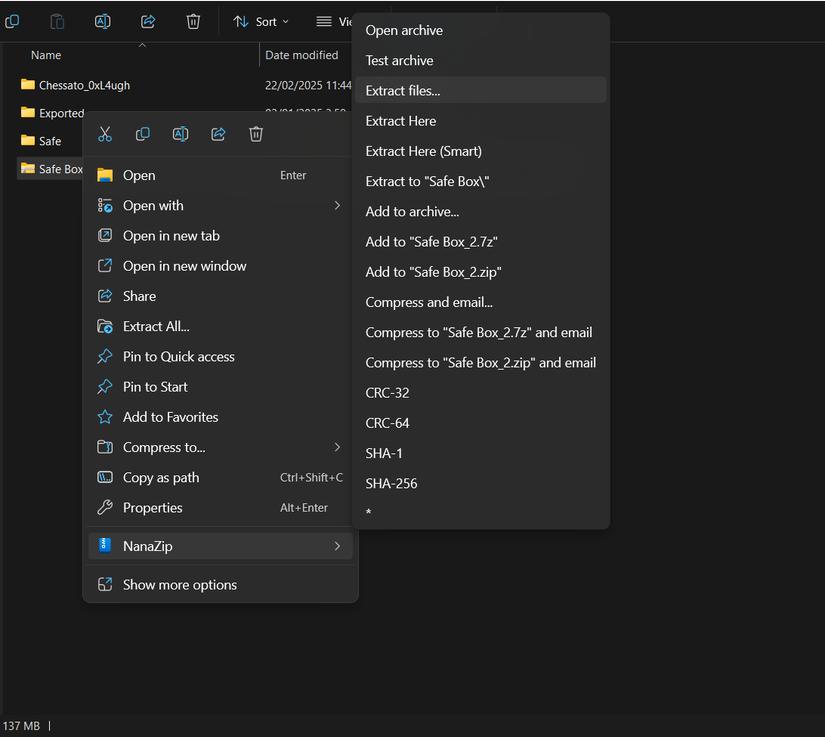
Right-click integration that actually works with the new Windows 11 context menu system. Compress and extract directly from Explorer without extra clicks or workarounds.
Dark Mode & Mica Effect
All GUI components support dark mode natively. On Windows 11, the main window uses the Mica material effect for a translucent, system-matched look that feels right at home.
MSIX Packaging
Distributed as a signed MSIX bundle — the same format Microsoft uses for its own apps. Clean installs, clean uninstalls, and automatic updates through the Microsoft Store.
Advanced Hash Verification
Verify file integrity with MD5, SHA-1, SHA-256, SHA-3, BLAKE2b, BLAKE3, and XXH64. Useful for confirming downloads, checking backups, or validating forensic copies.
Security Hardened
Built with Control Flow Guard (CFG) and CET Shadow Stack protections enabled. These mitigations help defend against memory corruption exploits and return-oriented programming attacks.
Smart Extraction
Automatically detects whether an archive has a single root folder or loose files, then extracts accordingly. No more double-nested folders or files scattered across your desktop.
Filesystem Image Support
Read and browse UFS, ROMFS, ZealFS, and littlefs filesystem images directly. Handy for embedded developers, firmware engineers, or anyone working with disk images.
Per-Monitor DPI Awareness
Renders crisply on multi-monitor setups with mixed DPI scaling. Move the window between a 4K display and a 1080p screen without blurry text or broken layouts.
Developer-Friendly Formats
Open .NET single-file bundles and Electron ASAR packages for inspection. Decompress NSIS installer scripts too — helpful when you need to audit what a setup wizard actually does.
Open Source & MIT Licensed
The full source code lives on GitHub with 16,000+ stars and 39 contributors. Free for personal and commercial use under the MIT license. Fork it, audit it, contribute back.
Ready to try it? Download NanaZip and see the difference for yourself.
Download NanaZip
Grab the latest release of NanaZip for Windows 10 and 11. Pick the format that works best for your setup.
NanaZip for Windows
Download NanaZipMSIX Bundle · 11.7 MBWhat's new in NanaZip 7.0.1882.0
I'm excited to announce that we've released NanaZip 7.0, version 2610.2 (7.0.1882.0), now available for download.
Note: Read NanaZip Technical Focus from Kenji Mouri to clarify some future directions of NanaZip.
Starting with NanaZip 7.0, NanaZip follows a rolling release model. Read github.com/M2Team/NanaZip/blob/main/Documents/Versioning.md#release-tags for more information.
We recommend holding off on File Manager-related pull requests for now, as they may require a complete rewrite afterward. Such contributions may become practical again around mid-November or December.
Release Notes
Note: These notes also cover the corresponding preview release.
- Synchronize 7-Zip mainline implementations to 26.05. (Except the NanaZip File Manager.) (Thanks to Igor Pavlov.)
- Synchronize the 7-Zip ZS implementations to github.com/mcmilk/7-Zip-zstd/tree/f7331b3fa14455d78a6e6a91bdd9571c999bb081. (Thanks to Sergey G. Brester and Tino Reichardt.)
- Synchronize Brotli implementations to v1.2.1. (github.com/google/brotli/releases/tag/v1.2.1)
- Synchronize RHash to the latest master (github.com/rhash/RHash/tree/0517ba2ed33de0afc2d999b3353287dce3b4611c) which is after v1.4.6.
Download (Stable)
- MSIX Package: NanaZip_7.0.1882.0.msixbundle
- SHA-256: c32c33e5a59a0d02db89f1e85889f942cd7b22ad81110289214187c20e2b6168
- License XML: NanaZip_7.0.1882.0.xml
- SHA-256: 34cbf10a0b737ad237eba0560e6a71b3df2b61d9bfaf4409bafbdca9a7d1c6a9
- Portable package: NanaZip_7.0.1882.0_Binaries.zip
- SHA-256: 19d98f24697f6115fc6e788cdf675e52b4b35be9916f91457a76dd32ef00e53a
- Debug Symbols: NanaZip_7.0.1882.0_DebugSymbols.zip
- SHA-256: 8a4b5946f3e67674ec45fbfa9fce5cb4b04ac1cc4bf2832d44120171e0221488
Download (Preview)
- MSIX Package: NanaZipPreview_7.0.1882.0.msixbundle
- SHA-256: 73ed4a546ecc792219e60447d906e18ebc35b241c48bbcc30fd2f0e2850a01da
- License XML: NanaZipPreview_7.0.1882.0.xml
- SHA-256: f03a1280735c0f20650b1dc0d8435eb5f1664fef75e6ac44bbd23077334967a2
- Portable package: NanaZipPreview_7.0.1882.0_Binaries.zip
- SHA-256: df087c001a332c628e10ce50b95fbbef7667e3c6a87f48640e9f75b2e2211a7b
- Debug Symbols: NanaZipPreview_7.0.1882.0_DebugSymbols.zip
- SHA-256: 680ac0f5f8ada73b7817745de0ea4c161acbace270c6c94ea5e23bcd97f6b892
Kenji Mouri
Release notes from the GitHub release page, published October 26, 2026.
MSIX Installer
Standard install through the Windows App Installer. Includes shell integration, context menus, and automatic updates.
Portable ZIP
No installation needed. Extract and run from any folder or USB drive. Handy for testing or machines where you can’t install apps.
Microsoft Store
Install directly from the Microsoft Store. Updates arrive automatically, and the install stays sandboxed through MSIX packaging.
Alternative Download Sources
NanaZip requires Windows 10 version 2004 (build 19041) or later. The MSIX installer gives you shell integration and context menu support out of the box. If you prefer something portable, the ZIP archive works with no setup at all. For source code and build instructions, visit the GitHub repository.
Screenshots
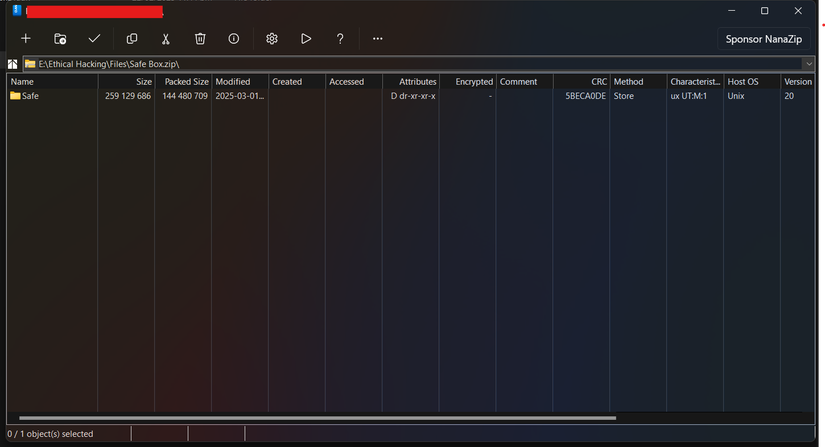
See NanaZip in action across light mode, dark mode, and the Windows 11 context menu integration.
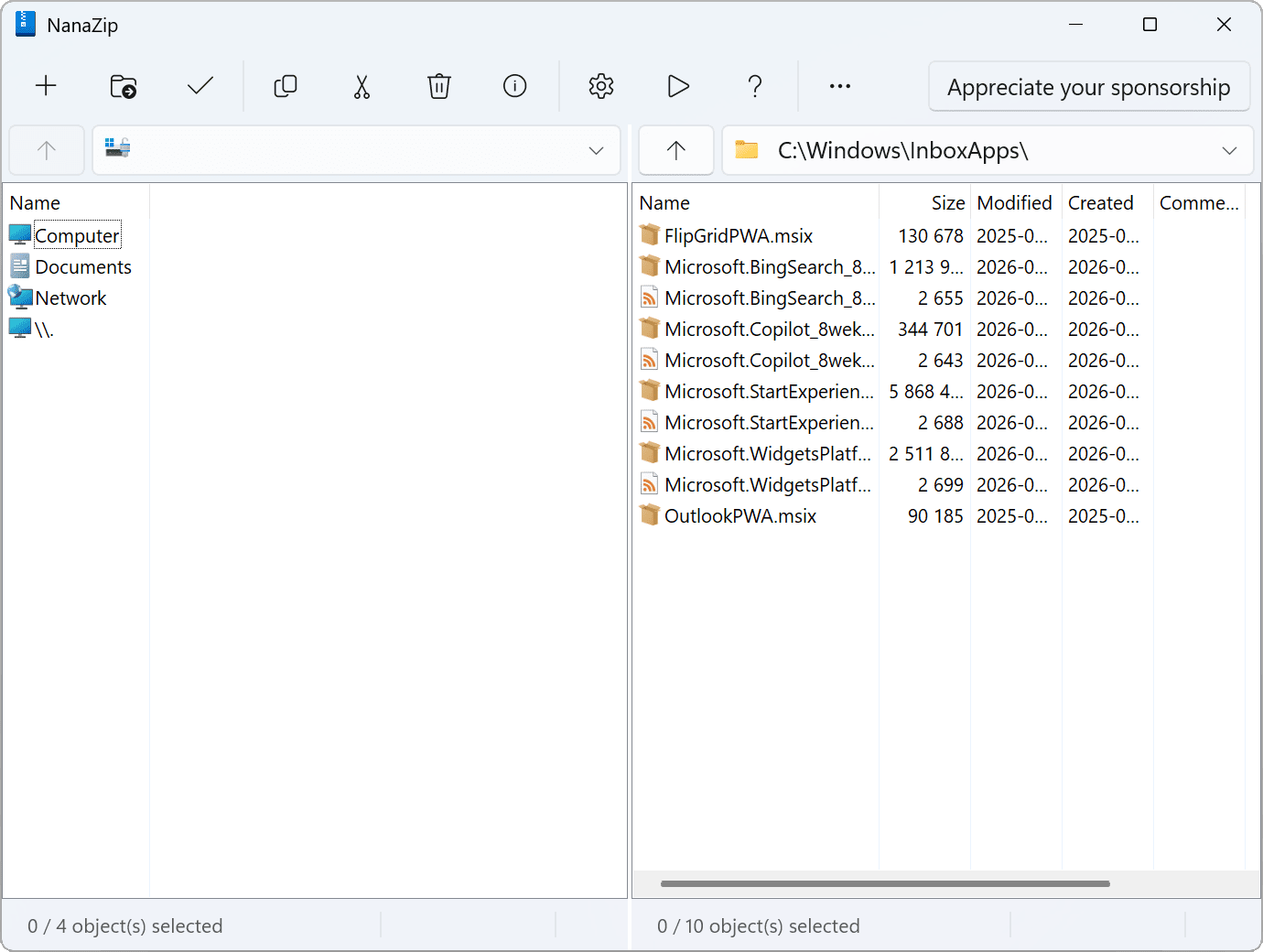
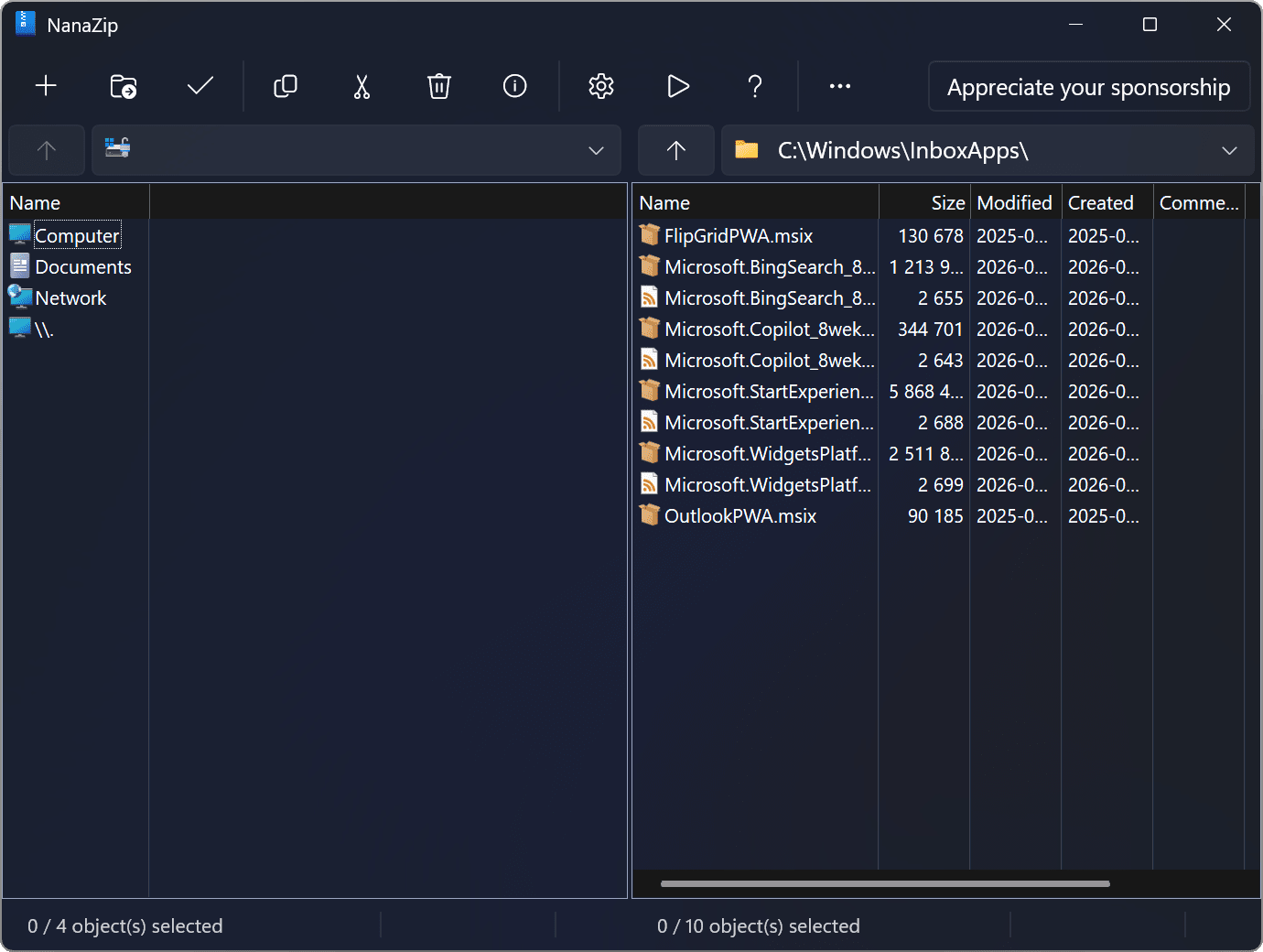
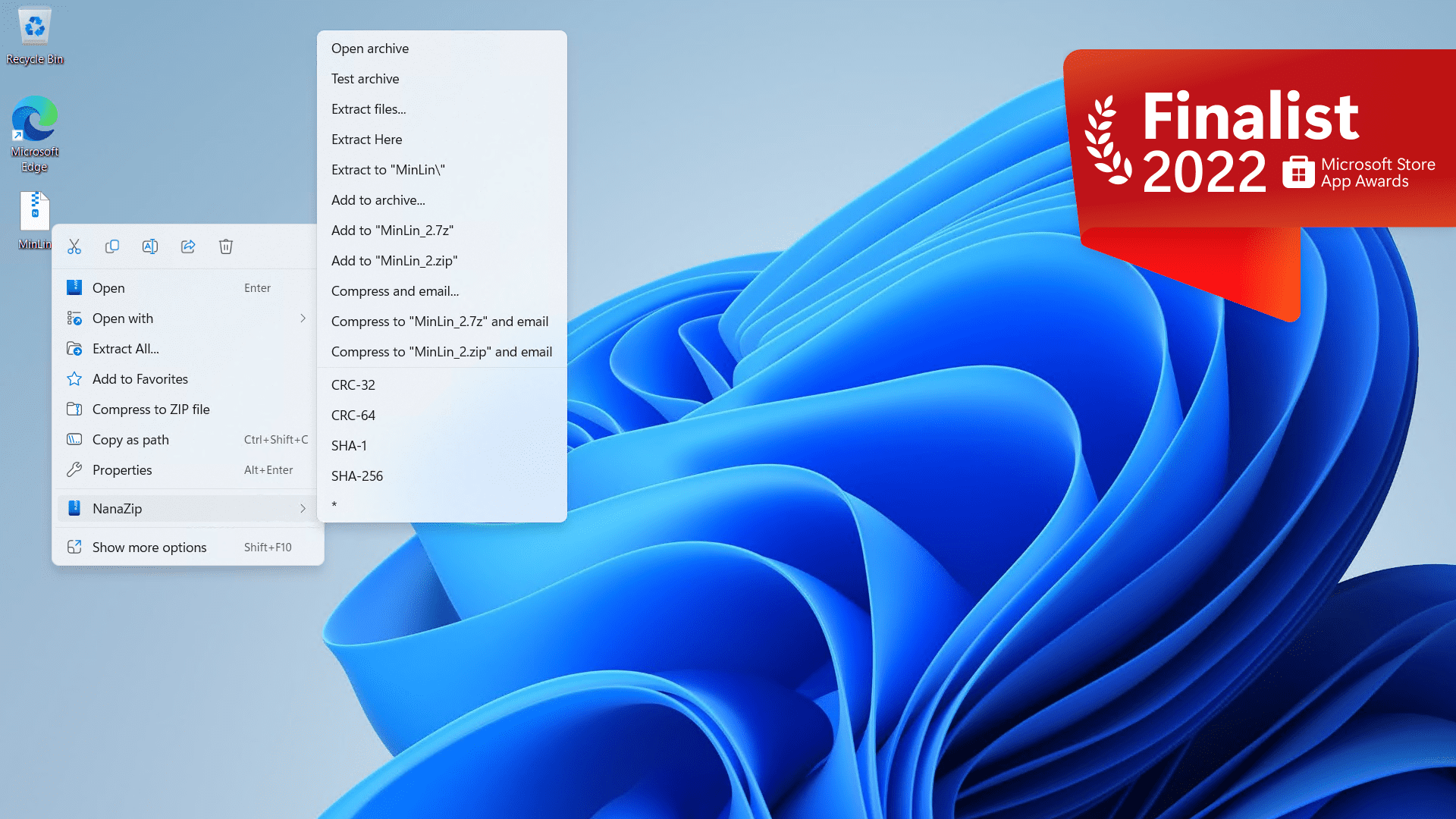
Want to try NanaZip yourself? Download it free and see the difference.
Getting Started with NanaZip
From download to your first compressed archive in under five minutes. Here is everything you need to know.
Downloading NanaZip
Head to our download section above and grab the latest release. NanaZip 7.0.1882.0 weighs in at about 11.7 MB as an MSIX bundle, so even on a slower connection it downloads in seconds.
You have two main options:
- MSIX bundle (.msixbundle) — the recommended choice for most users. MSIX is a modern Windows packaging format that handles installation, updates, and uninstallation cleanly. It also registers NanaZip in the Windows context menu automatically.
- Portable ZIP (Binaries.zip) — no installation needed. Extract the folder anywhere and run the executable directly. Good for USB drives or machines where you lack admin rights. The tradeoff: no automatic context menu integration or Windows Store updates.
There is no separate 32-bit vs 64-bit installer. The MSIX bundle includes binaries for both x64 and ARM64 architectures, and Windows picks the right one during installation.
Installation walkthrough
Method A: MSIX installer (recommended)
- Double-click the downloaded
.msixbundlefile. Windows will open the App Installer dialog showing the app name, publisher (M2Team), and version number. - Click Install. There are no wizard screens, no checkboxes to toggle, no toolbar bundles to decline. The MSIX format installs directly with no extra prompts.
- Installation finishes in a few seconds. NanaZip appears in your Start menu and registers itself in the File Explorer context menu right away.
Method B: Microsoft Store
- Open the Microsoft Store app, search for NanaZip.
- Click Get or Install. That is it — the Store handles everything including future updates.
Method C: PowerShell (sideload)
For scripted or silent deployments, open PowerShell as Administrator and run:
Add-AppxPackage -Path "C:DownloadsNanaZip_7.0.1882.0.msixbundle"
Replace the path with wherever you saved the file. This method works well for IT admins deploying NanaZip across multiple machines.
Method D: Portable
Extract Binaries.zip to any folder (e.g. C:ToolsNanaZip). Run NanaZipG.exe for the GUI or NanaZip.exe for the command-line interface. No registry changes, no installation footprint.
NanaZip requires Windows 10 version 2004 (build 19041) or later. Windows 11 works out of the box. There is no macOS or Linux version — NanaZip is Windows-only. Linux and macOS users should stick with the original 7-Zip or p7zip.
Initial setup and configuration
NanaZip works right after installation with sensible defaults, but a few settings are worth tweaking.
File associations
Open NanaZip from the Start menu. Go to Tools > Options and switch to the System tab. You will see a list of file extensions (.7z, .zip, .rar, .tar, .gz, .xz, and so on). Click Select All to associate NanaZip with every supported format, or pick only the ones you want. Click Apply.
On Windows 11, you may also need to set defaults through Settings > Apps > Default apps. Search for .zip or .7z, click the current handler, and select NanaZip from the list.
Context menu options
Still in Tools > Options, the 7-Zip tab (labeled this way for compatibility) lets you control which right-click menu items appear. The most useful entries:
- Extract Here — unpacks files in the current folder
- Extract Here (Smart) — creates a subfolder only when the archive has multiple root items
- Add to archive… — opens the full compression dialog
- Add to “[filename].7z” — quick one-click compression
- CRC SHA > — hash verification submenu
Uncheck anything you do not need to keep the context menu clean.
Dark mode
NanaZip follows your Windows system theme. If Windows is set to dark mode (Settings > Personalization > Colors > Choose your mode > Dark), NanaZip switches automatically. On Windows 11, the Mica material effect on the title bar activates too — no manual toggle needed.
Your first archive with NanaZip
Creating a compressed archive
Select one or more files in File Explorer, right-click, and choose NanaZip > Add to archive… (on Windows 11 you might need to click “Show more options” first if the entry does not appear in the compact menu). The Add to Archive dialog opens with these fields:
- Archive format — pick
7zfor best compression,zipfor maximum compatibility with other systems, ortarfor Linux interoperability. - Compression level — ranges from Store (no compression, fastest) through Normal to Ultra (smallest file, slowest). Normal is fine for everyday use.
- Compression method — LZMA2 is the default for 7z. You can also pick Zstandard for faster compression with near-equal ratios, or Brotli if your files will be served over the web.
- Dictionary size — larger dictionaries improve compression on big files but use more RAM. The default (16 MB for Normal) works well. Go to 64 MB or 128 MB only if you have 8+ GB of RAM and are archiving large datasets.
- Encryption — enter a password in the Encryption section to create a password-protected archive. Check Encrypt file names if you want even the filenames hidden (7z format only).
Click OK and NanaZip creates the archive. A progress bar shows estimated time and compression ratio.
Extracting an archive
Right-click any supported archive in File Explorer and choose NanaZip > Extract Here (Smart). Smart extraction checks if the archive has a single root folder and, if so, extracts directly without creating a redundant wrapper folder. For archives with loose files at the root, it creates a named folder to keep things organized.
For more control, choose Extract to… and pick a destination folder manually.
Using the file manager
Launch NanaZip from the Start menu to open the built-in file manager. It looks like a simplified File Explorer: a path bar at top, toolbar buttons (Add, Extract, Test, Copy, Move, Delete, Info), and a file list below. You can browse into archives as if they were regular folders, drag files in and out, and run integrity tests.
Keyboard shortcuts
| Shortcut | Action |
|---|---|
| Ctrl + A | Select all files |
| F5 | Refresh file list |
| Alt + Enter | View file properties / archive info |
| Enter | Open selected file or enter folder |
| Backspace | Go up one directory level |
| Delete | Remove selected files from archive |
| Ctrl + C | Copy selected files |
Tips, tricks, and best practices
Use Zstandard for speed
If compression ratio matters less than speed, pick the zstd method when creating archives. Zstandard compresses and decompresses several times faster than LZMA2, and the file size difference is often only 5-10%. It is great for daily backups or sharing files with coworkers where time matters more than squeezing out every last byte.
Verify archive integrity
After creating an archive, right-click it and choose NanaZip > CRC SHA > SHA-256 to generate a hash. NanaZip supports BLAKE3, SHA-3, XXH64, and a dozen other algorithms if you need something specific. This is useful for verifying downloads or checking that a backup file was not corrupted during transfer.
Split large archives
In the Add to Archive dialog, the Split to volumes field lets you break a large archive into smaller chunks. Enter a size like 700M for CD-sized splits or 4480M for DVD. Helpful when you need to email large files or copy them onto FAT32 drives with a 4 GB file size limit.
Common beginner mistakes
- Setting dictionary size too high on machines with 4 GB of RAM — this can cause NanaZip to run out of memory mid-compression. Stick to the default unless you know your system can handle it.
- Choosing Ultra compression for everyday archives. Normal or Maximum covers most cases. Ultra is only worth it for archival storage where you compress once and extract many times.
- Forgetting that
.rarextraction is supported but RAR creation is not (RAR is a proprietary format). Use 7z or zip instead.
Stay updated
If you installed through the Microsoft Store, updates arrive automatically. For the MSIX sideload, check the GitHub releases page periodically or watch the repository for notifications. The NanaZip Preview app (separate Store listing) gives you access to beta features before they reach the stable channel.
Ready to start archiving? Download NanaZip and try it out.
Frequently Asked Questions
Answers to common questions about downloading, installing, and using NanaZip on Windows 10 and Windows 11.
Is NanaZip safe to download and install?
Yes, NanaZip is safe. The project is open source under the MIT License, hosted publicly on GitHub with over 16,000 stars and 39+ contributors. Every release is built from auditable source code, and the official MSIX installer is digitally signed and distributed through the Microsoft Store, which runs its own malware screening before listing apps.
NanaZip also includes built-in security hardening that goes beyond standard 7-Zip. It enables Control Flow Guard (CFG) and CET Shadow Stack protections, which help prevent exploit techniques like return-oriented programming. The software respects Mark of the Web (MOTW) flags on downloaded archives, so Windows SmartScreen warnings remain intact for files extracted from untrusted sources. Independent security researchers have noted these additions as meaningful improvements over the upstream 7-Zip codebase.
A small number of Reddit users have reported antivirus false positives (typically generic Trojan flags) on the Microsoft Store version. These are confirmed false positives — Windows Defender clears NanaZip, and uploading the binary to VirusTotal shows clean results from major engines. If your AV flags it, whitelist the file or verify the SHA-256 hash against the official GitHub release page.
Pro tip: Always download from either the Microsoft Store listing or the official GitHub Releases page. Third-party download sites sometimes repackage installers with bundled adware.
For download options and direct links, see our Download section.
Is NanaZip free from malware and spyware?
NanaZip contains no malware, spyware, adware, or telemetry of any kind. The entire source code is published on GitHub under the M2Team organization, meaning anyone can audit exactly what the software does. There are no hidden network calls, no data collection routines, and no bundled toolbars.
The MSIX packaging format used by NanaZip adds another layer of trust. MSIX packages run in a lightweight container with declared capabilities — NanaZip only requests file system access, which is exactly what a file archiver needs. It cannot silently install browser extensions, modify system settings, or phone home to remote servers. This is a significant advantage over traditional .exe installers where you have to trust the developer not to bundle extras.
Compare this to WinRAR, which has had documented security vulnerabilities (including a 2023 zero-day exploit tracked as CVE-2023-38831 used by state-sponsored hackers). NanaZip has had no such CVEs, and its additional CFG/Shadow Stack protections make exploitation harder even if a bug were found.
Pro tip: You can verify any NanaZip release yourself by cloning the GitHub repository and building from source using Visual Studio 2022 with the Windows 11 SDK (10.0.22621 or later). Build instructions are in the repository README.
Check our Features section for a full list of NanaZip’s security capabilities.
Where is the official safe download for NanaZip?
The two official download sources for NanaZip are the Microsoft Store and the GitHub Releases page maintained by developer Kenji Mouri (MouriNaruto) under the M2Team organization.
The Microsoft Store version (search for “NanaZip” or use the direct link for app ID 9N8G7TSCL18R) gives you automatic background updates and verified MSIX packaging. The GitHub Releases page at github.com/M2Team/NanaZip/releases offers the same MSIX bundle (currently version 7.0.1882.0, released October 26, 2026) plus portable ZIP binaries for systems where MSIX is not available. The MSIX bundle is approximately 11.7 MB.
- Microsoft Store — best for most users; handles updates automatically
- GitHub Releases — offers MSIX bundle + portable ZIP; manual updates
- WinGet — install via terminal:
winget install M2Team.NanaZip - SourceForge mirror — official mirror maintained by M2Team
Avoid downloading NanaZip from file-hosting sites like Softonic, CNET Download, or FileHippo. These sites sometimes wrap open-source installers in their own downloaders that bundle unwanted software.
Pro tip: If you manage multiple machines, use WinGet for scripted deployment: winget install M2Team.NanaZip --accept-package-agreements --silent handles everything in a single command.
Head to our Download section for direct links to all official sources.
Does NanaZip work on Windows 11?
NanaZip was built specifically for Windows 11. It is one of the first third-party file archivers to implement native Windows 11 context menu integration using the new IExplorerCommand API, so you see NanaZip directly in the compact right-click menu without clicking “Show more options.”
On Windows 11, NanaZip also supports visual features that only work on this OS version: the Mica material effect on the title bar (which pulls your desktop wallpaper color through the window chrome), rounded window corners matching the Fluent Design language, and full dark/light mode switching tied to your system theme setting. These features require Windows 11 build 22000 or later.
The context menu integration shows a single “NanaZip” entry that expands into sub-commands (Extract Here, Extract to folder, Add to archive, etc.). This cascaded approach is a requirement of the Windows 11 context menu API — unlike 7-Zip, which shows multiple separate entries in the legacy “Show more options” menu. Some users on Windows 11 24H2 have reported icons occasionally disappearing from the context menu; restarting File Explorer typically fixes this.
Pro tip: If you upgraded from Windows 10 to 11 and the NanaZip context menu is missing, uninstall and reinstall from the Microsoft Store. The shell extension registration sometimes does not carry over cleanly during OS upgrades.
See our System Requirements for detailed compatibility info.
What are the minimum system requirements for NanaZip?
NanaZip requires Windows 10 version 2004 (build 19041) or later. This includes all versions of Windows 11. It supports x86, x64 (AMD64), and ARM64 processor architectures.
In terms of hardware, NanaZip is extremely lightweight. The installed size is under 30 MB, and idle memory usage sits around 15-25 MB. During active compression or extraction, RAM usage scales with the dictionary size you select — the default LZMA2 dictionary of 64 MB means the process will use roughly 100-150 MB of RAM. If you set the dictionary to 256 MB or higher for maximum compression, plan for 500+ MB of RAM during the operation. CPU usage will max out all available cores during compression, as NanaZip fully supports multi-threading.
- OS: Windows 10 version 2004 (build 19041.0) or later
- Processor: Any x86, x64, or ARM64 CPU
- RAM: 512 MB minimum; 4 GB+ recommended for large archives
- Disk: 30 MB for installation; additional space for temporary files during compression
- Dependencies: None for MSIX install; Microsoft Store version auto-handles everything
NanaZip does not support Windows 7, Windows 8, or Windows 8.1. If you need archiver support on those operating systems, stick with the original 7-Zip.
Pro tip: On ARM64 devices like the Surface Pro X or Snapdragon-based laptops, NanaZip runs natively — no x86 emulation layer required. This gives you better battery life and faster performance compared to running standard 7-Zip under emulation.
For a full requirements breakdown, visit our System Requirements section.
Does NanaZip support macOS or Linux?
No, NanaZip is Windows-only. It relies heavily on Windows-specific APIs including MSIX packaging, Windows Explorer shell extensions (IExplorerCommand), XAML Islands for the modern UI, and the Mica visual effect. These technologies have no equivalent on macOS or Linux.
The developer Kenji Mouri has stated that cross-platform support is not planned because NanaZip’s core purpose is to bring a modern Windows-native experience to file archiving. Porting it would mean stripping out most of the features that differentiate it from plain 7-Zip.
If you need a 7-Zip-based archiver on other platforms, here are your best options:
- macOS: Use Keka (free, supports 7z/ZIP/RAR) or The Unarchiver (free from Mac App Store)
- Linux: Install
p7zip-fullfrom your package manager — this is the official Linux port of 7-Zip’s command-line tools. On Ubuntu/Debian:sudo apt install p7zip-full - Cross-platform: PeaZip offers GUI support on Windows, Linux, and (unofficially) macOS with similar format support
Pro tip: If you create archives on Windows with NanaZip and need to extract them on macOS or Linux, use standard formats like ZIP or TAR.GZ for maximum compatibility. The 7z format works too, but requires p7zip to be installed on the receiving system.
Learn more about supported formats in our Features section.
Is NanaZip completely free to use?
Yes, NanaZip is 100% free for personal and commercial use. There is no paid version, no trial period, no feature restrictions, and no nag screens asking you to purchase a license. Every feature is available to every user at no cost.
NanaZip is licensed under the MIT License, one of the most permissive open-source licenses available. This means you can use it in corporate environments, redistribute it, and even modify the source code for your own purposes. The only requirement is that the MIT license notice stays in the source files. There are no per-seat fees, no activation keys, and no subscription tiers.
This is a clear advantage over WinRAR (which costs $29.00 per license after a 40-day trial and nags you endlessly) and WinZip ($34.95/year subscription). NanaZip delivers comparable or better functionality at zero cost, backed by a transparent development process on GitHub where you can see every commit, pull request, and issue discussion.
Pro tip: For enterprise deployment, NanaZip’s MSIX format works well with Microsoft Intune, SCCM, and Group Policy. You can deploy it silently across your organization using Add-AppxPackage in PowerShell or through the Microsoft Store for Business.
Ready to get started? Visit our Download section to grab NanaZip.
What license does NanaZip use?
NanaZip uses the MIT License. This is a short, simple permissive license that allows you to use, copy, modify, merge, publish, distribute, sublicense, and sell copies of the software without restriction, as long as you include the original copyright notice.
The upstream 7-Zip code that NanaZip is forked from uses a mixed licensing model: the LZMA SDK is public domain, while other parts use the GNU LGPL and BSD licenses. NanaZip’s own additions and modifications are MIT-licensed. In practice, this means the combined work is free to use and distribute, and you do not need to open-source your own projects just because they include or interact with NanaZip.
For businesses evaluating NanaZip, the MIT License is one of the least restrictive options in open source. Your legal team will likely approve it faster than GPL-licensed alternatives, since it does not require derivative works to be open-sourced. Companies like Microsoft, Google, and Facebook use MIT-licensed code extensively in commercial products.
Pro tip: If you are bundling NanaZip as part of a system image or IT toolkit, you just need to include the LICENSE file from the GitHub repository. No registration, no notification to the developer, and no royalties.
Check the full source and license at the NanaZip GitHub repository, or explore all features NanaZip offers.
How do I download and install NanaZip step by step?
Installing NanaZip takes under two minutes. The easiest method is through the Microsoft Store, but you can also install manually from the GitHub release or use a package manager.
Method 1: Microsoft Store (recommended)
- Open the Microsoft Store app on your Windows 10 or 11 PC
- Search for “NanaZip” (publisher: MouriNaruto / M2Team)
- Click “Get” or “Install” and wait for the download (approximately 11.7 MB)
- Once installed, right-click any archive file to see NanaZip in the context menu
Method 2: WinGet (command line)
- Open Windows Terminal or PowerShell
- Run:
winget install M2Team.NanaZip - Accept the license agreement when prompted
- Wait for the installation to complete — no restart needed
Method 3: Manual MSIX install
- Download the .msixbundle file from the GitHub Releases page
- Double-click the file and click “Install” in the dialog
- Alternatively, run in PowerShell:
Add-AppxPackage -Path "NanaZip_7.0.1882.0.msixbundle"
After installation via any method, NanaZip immediately appears in the Windows Explorer context menu. No system restart required. You can also launch the NanaZip file manager from the Start menu to browse and create archives.
Pro tip: If Windows SmartScreen shows a warning when installing the MSIX manually, click “More info” then “Run anyway.” This happens because the manual download does not go through the Store’s signing pipeline, but the binary itself is identical.
For a detailed walkthrough, read our Getting Started guide.
NanaZip portable vs MSIX installer – which should I choose?
Choose the MSIX installer (Store or manual) for daily use on your main PC. Choose the portable version only for USB drives, Windows PE environments, or systems where MSIX packages cannot be installed.
The MSIX version gives you the full NanaZip experience: Windows Explorer context menu integration, file type associations (so double-clicking a .7z or .zip file opens NanaZip), automatic updates through the Microsoft Store, dark mode with Mica effects, and proper Start menu integration. The portable version skips all of this — it is a standalone executable that runs from whatever folder you extract it to, with no shell integration and no automatic updates.
Here is a direct comparison:
- MSIX installer: Context menu integration, file associations, auto-updates, dark mode, Mica UI, clean install/uninstall via Windows settings
- Portable: No installation required, runs from USB drive or any folder, no context menu integration, no file associations, no auto-updates, works on Windows Server and PE environments
The portable version is useful in specific scenarios: IT technicians who carry a USB toolkit, users testing NanaZip before committing to a full install, and systems running Windows Server where Microsoft Store access may be restricted. For standard desktop use on Windows 10 or 11, the MSIX version is better in every way.
Pro tip: You can run both versions side by side. Install the MSIX for daily use and keep a portable copy on a USB drive for when you need to work on other machines.
Grab the version that fits your needs from our Download section.
How to fix NanaZip installation errors on Windows?
Most NanaZip installation errors are related to the MSIX package format or Windows Store service issues. Here are the common problems and their fixes.
Error: “App installation failed” or “Deployment failed with HRESULT”
- Make sure your Windows 10 version is 2004 (build 19041) or later — run
winverto check - Open PowerShell as Administrator and run:
Get-AppxPackage *NanaZip* | Remove-AppxPackageto remove any corrupted previous install - Reset the Microsoft Store cache: press Win+R, type
wsreset.exe, press Enter - Try installing again from the Store or via the MSIX file
Error: “This app package is not supported for installation by App Installer”
This means your Windows version is too old. NanaZip requires build 19041.0 minimum. Run Windows Update and install all pending updates before trying again.
Error: PowerShell Add-AppxPackage fails with access denied
Run PowerShell as Administrator. If you are on a managed corporate PC, your IT department may have blocked sideloading of MSIX packages. Ask them to enable “Developer mode” or install through the Microsoft Store for Business instead.
Pro tip: If nothing else works, skip MSIX entirely and use WinGet: winget install M2Team.NanaZip --force. WinGet handles all the packaging dependencies automatically and tends to work even when manual MSIX installs fail.
Still stuck? Check our Getting Started guide for a step-by-step walkthrough.
NanaZip is not showing in the Windows 11 right-click menu – how to fix?
This is the most frequently reported NanaZip issue. The context menu entry can disappear after Windows updates, shell extension conflicts, or incomplete installations. Here is how to fix it.
Step 1: Restart File Explorer. Open Task Manager (Ctrl+Shift+Esc), find “Windows Explorer” in the Processes tab, right-click it and choose “Restart.” Check the context menu again — this alone fixes the issue about 60% of the time.
Step 2: Reboot your PC. A full restart (not just sleep/wake) re-registers all shell extensions. Several GitHub issue reporters confirmed this fixed their missing context menu.
Step 3: Repair the installation. Go to Settings > Apps > Installed apps, find NanaZip, click the three-dot menu, select “Advanced options,” then click “Repair.” If that does not help, click “Reset” (this clears NanaZip’s settings but keeps it installed).
Step 4: Reinstall. Uninstall NanaZip completely, reboot, then install fresh from the Microsoft Store. This is the nuclear option but has a near-100% success rate.
Known trigger: Windows 11 update KB5044380 (October 2024) broke NanaZip’s context menu for some users. If you installed this update recently, try steps 3 and 4 above. NanaZip version 5.0 and later includes fixes for most Windows update compatibility issues.
Pro tip: If you use third-party shell customization tools like Nilesoft Shell or ExplorerPatcher to restore the Windows 10 context menu, these can conflict with NanaZip’s IExplorerCommand registration. Try disabling them temporarily to see if NanaZip reappears.
See our Getting Started guide for proper setup instructions.
How to fix NanaZip not opening or crashing on startup?
If NanaZip crashes on launch, freezes at startup, or closes immediately, the issue is typically a corrupted MSIX package, a conflicting Windows update, or a bad configuration file.
Quick fixes to try first:
- Go to Settings > Apps > NanaZip > Advanced options > click “Repair”
- If Repair does not help, click “Reset” (this wipes NanaZip settings but keeps the install)
- Check if you are running the latest version — open Microsoft Store > Library > Get Updates
If the above does not work:
- Uninstall NanaZip from Settings > Apps
- Open PowerShell as admin and run:
Get-AppxPackage *NanaZip* | Remove-AppxPackage - Restart your computer
- Reinstall from the Microsoft Store or use
winget install M2Team.NanaZip
Some users have reported NanaZip hanging at 97% during extraction of specific archives. This is a known upstream 7-Zip issue with certain malformed archive headers. If you hit this, try extracting the archive using the command-line interface instead: open Terminal and run nanazip x archive.7z -o"output_folder".
Pro tip: Enable Windows Event Viewer logging to diagnose crashes. Go to Event Viewer > Windows Logs > Application and filter for events around the time NanaZip crashed. Look for faulting module names — this tells you whether the crash is in NanaZip itself or a Windows component.
For installation help, check our Getting Started guide.
NanaZip stopped working after a Windows update – how to fix?
Windows updates occasionally break MSIX app registrations, including NanaZip’s shell extension and context menu integration. This has happened with specific cumulative updates in 2024 and early 2025.
The fix depends on what broke. If the context menu entries disappeared but the NanaZip file manager still opens, see the context menu troubleshooting FAQ above. If NanaZip will not launch at all after a Windows update, follow these steps:
- Open Microsoft Store > Library > click “Get updates” — NanaZip may have a compatibility update waiting
- Run Settings > Apps > NanaZip > Advanced options > Repair
- If neither works, uninstall and reinstall. This re-registers all file associations and shell extensions with the updated Windows build
- As a last resort, roll back the problematic Windows update from Settings > Windows Update > Update History > Uninstall updates
NanaZip version 6.0 (based on 7-Zip 26.00) includes improved compatibility with Windows 11 24H2. If you are running an older version, updating to 6.0 resolves most post-update breakages. The developer actively monitors GitHub issues for Windows update conflicts and typically publishes fixes within weeks of a problematic update rolling out.
Pro tip: Pin a specific NanaZip version by installing from the MSIX file on GitHub rather than the Store. Store versions update automatically, which can sometimes introduce new issues on older Windows builds. The manual MSIX approach lets you control when to update.
Visit Download to get the latest stable release.
How do I update NanaZip to the latest version?
The update method depends on how you installed NanaZip. Microsoft Store users get automatic updates. Manual MSIX and portable users need to update manually.
Microsoft Store install: Updates happen automatically in the background. To force an immediate check, open the Store app, click “Library” in the bottom-left, then click “Get updates.” If a NanaZip update is available, it downloads and installs without interrupting your work. You do not need to close NanaZip first — the MSIX framework handles version switching at next launch.
Manual MSIX install: Download the latest .msixbundle from the GitHub Releases page. Double-click it and click “Update” in the dialog, or run: Add-AppxPackage -DeferRegistrationWhenPackagesAreInUse -ForceUpdateFromAnyVersion -Path "NanaZip.msixbundle". This upgrades in place without losing your settings.
WinGet: Run winget upgrade M2Team.NanaZip in Terminal. To check available updates first: winget list M2Team.NanaZip.
Portable: Download the new portable ZIP from GitHub, close any running NanaZip instance, and extract the new files over the old folder (or use a fresh folder and update your shortcuts).
Pro tip: Subscribe to releases on the NanaZip GitHub repository by clicking Watch > Custom > Releases. You will get an email notification whenever a new version drops, so you never miss an important security or compatibility update.
Get the current version from our Download section.
What is new in the latest version of NanaZip?
The newest release is NanaZip 7.0.1882.0, published October 26, 2026. Its full changelog is in the “What’s new” panel of our download section, which updates automatically whenever a new version ships. Starting with 7.0, NanaZip follows a rolling release model, so new builds arrive every few weeks.
For reference, key changes in the 6.0 series (based on 7-Zip 26.00):
- Rebased on 7-Zip 26.00, which brings improved LZMA2 compression speed and better multi-threading on modern CPUs with 16+ cores
- Added support for reading filesystem images including UFS (BSD), ROMFS (Linux), ZealFS, and littlefs (IoT/embedded)
- New format support: .NET single-file bundle extraction and Electron ASAR archive support
- NSIS script decompiling capability for examining Windows installer packages
- Smart Extraction feature that automatically creates a subfolder when extracting archives with multiple root items
- Improved Windows 11 24H2 compatibility for context menu integration
- Bug fixes for “The parameter is incorrect” errors when compressing with Lizard and certain codec settings
Previous major versions added Brotli, Fast-LZMA2, Lizard, LZ4, and Zstandard codec support (these were not in standard 7-Zip at the time). NanaZip also added BLAKE3 and XXH64 hash algorithms, which are significantly faster than SHA-256 for large-file integrity checks.
Pro tip: Read the full changelog at the GitHub Releases page before updating. Each release includes detailed notes about bug fixes and known issues specific to certain Windows builds.
Download the latest version from our Download section.
NanaZip vs 7-Zip – what are the differences and which is better?
NanaZip is a fork of 7-Zip, so it has all the same compression capabilities plus modern Windows features that 7-Zip lacks. For Windows 10 and 11 users, NanaZip is the better choice. For cross-platform use or Windows 7/8 compatibility, stick with 7-Zip.
The core compression engine is identical — both use LZMA/LZMA2 with the same algorithms, so compression ratios and speeds match within 1-2% on standard benchmarks. Where they differ is everything around that engine:
- Context menu: NanaZip integrates natively with the Windows 11 compact menu. 7-Zip only shows in “Show more options” (the legacy menu). As of 2025, 7-Zip added limited Win11 context menu support, but NanaZip’s implementation remains more polished
- UI: NanaZip offers a modern XAML-based interface with dark mode, Mica effects, and proper DPI scaling. 7-Zip uses a classic Win32 interface that has not changed visually in over a decade
- Extra formats: NanaZip adds Brotli, Zstandard, Fast-LZMA2, LZ4, and Lizard codec support for both compression and extraction. Standard 7-Zip does not include these
- Security: NanaZip enables Control Flow Guard and CET Shadow Stack, adds strict MOTW checking. 7-Zip has had documented vulnerabilities like CVE-2024-11612
- Updates: NanaZip updates automatically through the Microsoft Store. 7-Zip requires manual downloading from 7-zip.org
- Packaging: NanaZip uses MSIX for clean install/uninstall. 7-Zip uses a traditional .exe installer
Pro tip: You can install both side by side. They do not conflict. Many users keep 7-Zip for its command-line 7z.exe tool (used in build scripts) and NanaZip for daily file management with the context menu.
Explore all of NanaZip’s advantages in our Features section.
How does NanaZip compare to WinRAR and PeaZip?
NanaZip beats WinRAR on price, security, and openness. It beats PeaZip on Windows integration and UI polish. Here is how they stack up across the criteria that matter most.
NanaZip vs WinRAR: WinRAR costs $29.00 per license and famously nags you to pay after the 40-day trial (though it keeps working indefinitely). NanaZip is free under the MIT License. WinRAR’s proprietary RAR format achieves slightly better compression on certain file types, but NanaZip’s 7z format beats RAR on most benchmarks. WinRAR has had serious security issues, including CVE-2023-38831, a zero-day exploited by APT groups to deliver malware through crafted archive files. NanaZip has no such track record, and its MSIX sandboxing adds an extra safety layer.
NanaZip vs PeaZip: PeaZip is also free and open source, and supports an even wider range of formats (200+). However, PeaZip uses a Qt-based interface that looks and feels out of place on Windows 11. NanaZip’s XAML UI with Mica, dark mode, and native context menu integration feels like a first-party Windows app. PeaZip also has a cross-platform version for Linux, which NanaZip does not offer. If you only use Windows, NanaZip provides a more refined experience. If you need Linux support, PeaZip wins.
- Best Windows 11 integration: NanaZip
- Best cross-platform support: PeaZip
- Best RAR creation: WinRAR (only one that can create .rar files)
- Best value: NanaZip (free, no nag screens, MIT-licensed)
Pro tip: All three can extract RAR files. Only WinRAR can create RAR archives. If you do not need to create .rar files specifically, NanaZip’s 7z format offers better compression and NanaZip gives you a more polished Windows experience for free.
See our Features section for everything NanaZip supports.
Does NanaZip support Brotli, Zstandard, and other modern compression formats?
Yes. NanaZip includes several compression codecs that are not available in standard 7-Zip. You can both compress and extract using these formats directly from the NanaZip interface or command line.
Additional codecs in NanaZip beyond standard 7-Zip:
- Brotli: Google’s compression algorithm, widely used for web content. Offers 20-26% better compression than gzip at similar speeds
- Zstandard (zstd): Facebook’s codec designed for real-time compression. Extremely fast decompression (1,500+ MB/s) while achieving ratios close to LZMA
- Fast-LZMA2: A multi-threaded variant of LZMA2 that scales better on CPUs with 8+ cores, reaching near-linear speedups
- LZ4: Optimized for speed. Compresses at 780+ MB/s and decompresses at 4,970+ MB/s at the cost of lower compression ratios
- Lizard: A compression algorithm that bridges the gap between LZ4 speed and zstd ratio, useful for gaming and real-time applications
NanaZip also includes extended hash algorithms: BLAKE2b, BLAKE3, XXH3 (64-bit), and XXH128 alongside standard MD5, SHA-1, SHA-256, SHA-384, SHA-512, and SHA-3 family. BLAKE3 hashes at 3-5 GB/s on modern CPUs, making it the fastest option for verifying file integrity on large datasets.
Pro tip: When creating archives for distribution, use Zstandard at compression level 3-5 for the best balance of size and extraction speed. For archival storage where extraction speed is less important, use LZMA2 with dictionary size 64 MB or higher.
Browse the full codec list in our Features overview.
Can I use NanaZip from the command line?
Yes. NanaZip provides full command-line access through its bundled executables. If you installed the MSIX version, the command-line tools are available in the app’s package directory and accessible via the nanazip command alias.
Common command-line operations:
- Extract an archive:
nanazip x archive.7z -o"C:outputfolder" - Create a 7z archive:
nanazip a output.7z input_folder -mx=9(maximum compression) - Create a ZIP archive:
nanazip a output.zip files -tzip - List archive contents:
nanazip l archive.7z - Test archive integrity:
nanazip t archive.7z - Extract with Zstandard:
nanazip x archive.zst - Calculate hash:
nanazip h -scrcBLAKE3 file.iso
The command-line syntax mirrors 7-Zip’s 7z.exe almost exactly. If you have existing scripts that use 7z a, 7z x, or 7z t, you can swap in the NanaZip binary with minimal changes. The main addition is support for the extra codecs (Brotli, Zstandard, etc.) and hash algorithms.
For the portable version, navigate to the extracted folder and run the executable directly. For the MSIX version, the executable path is typically under C:Program FilesWindowsApps[NanaZip package folder].
Pro tip: Add NanaZip’s folder to your system PATH for easier access. For the MSIX version, create an alias in your PowerShell profile: Set-Alias nz "pathtoNanaZipC.exe" for the classic CLI variant.
Learn how to get started with both GUI and CLI in our Getting Started guide.
How do I set NanaZip as my default archive handler in Windows?
The MSIX version of NanaZip registers itself as a handler for common archive formats during installation. To make it the default for all supported types, you need to update your Windows file associations.
Windows 11 method:
- Open Settings > Apps > Default apps
- Search for NanaZip in the app list and click it
- You will see a list of file types (.7z, .zip, .tar, .gz, .bz2, .xz, .rar, etc.)
- Click each file type you want NanaZip to handle and select NanaZip from the list
Windows 10 method:
- Open Settings > Apps > Default apps > Choose default apps by file type
- Scroll to each archive extension (.7z, .zip, .rar, etc.)
- Click the current default and switch to NanaZip
Once set, double-clicking any associated archive file opens it directly in NanaZip’s file manager instead of Windows Explorer’s built-in handler. The MSIX version supports associations for: .7z, .zip, .rar, .tar, .gz, .bz2, .xz, .wim, .001 (split archives), and several others.
If NanaZip does not appear in the app selection list, try repairing the installation from Settings > Apps > NanaZip > Advanced options > Repair. This re-registers all file type handlers.
Pro tip: The portable version cannot register as a default handler since it has no installer integration. If you need file associations, use the MSIX version.
Need help setting up? Visit our Getting Started guide.
Still have questions? Check the NanaZip GitHub Issues page or visit our Download section to get started.